
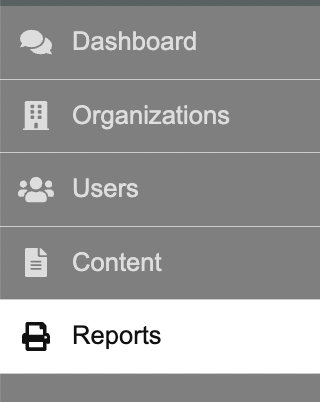
QRM Admins are able to see an overview of employee usage of your platform using the left navigation menu. Click on 'Reports', or the reports icon, on the left-side navigation menu. From this Reports page, you can look into user activity reports as well as an overview of user accounts.
User Activity
The 'Activity' page shows an overview of usage in each organization. This screen shows the total number of employees, how many have been assessed, and the average Financial Wellness Score for the organization.
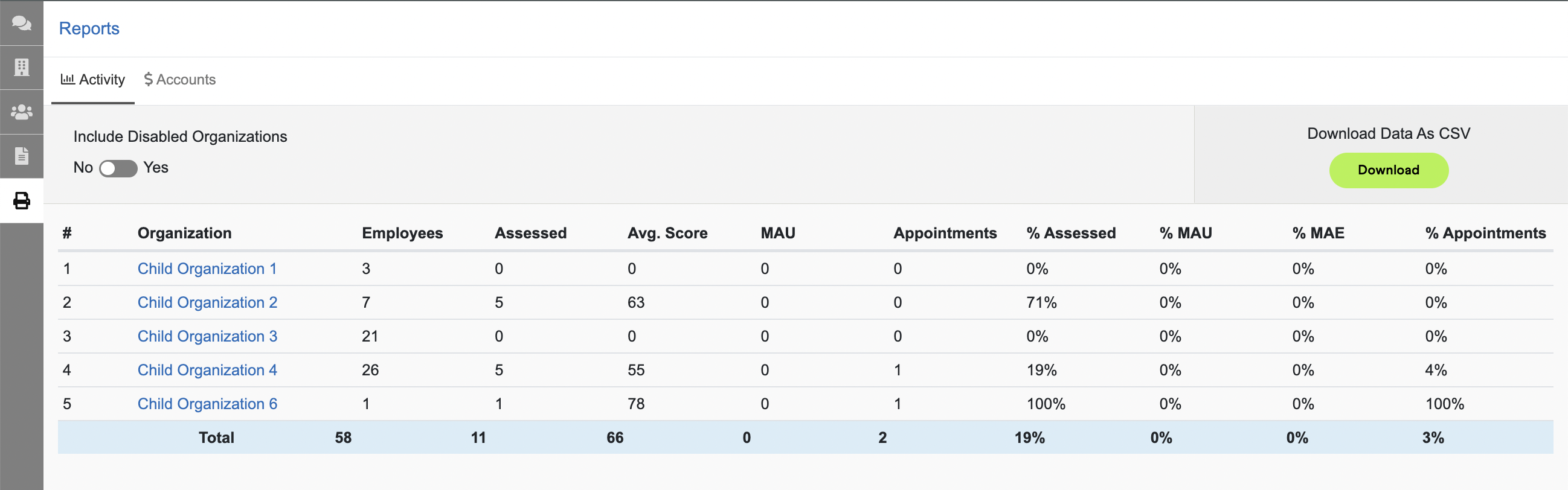
MAU, or Monthly Active Users, shows how many users have been active this month and 'Appointments' shows how many of those users have met with their advisors. The final columns show ratios of usage, which are:
- % Assessed = number of users assessed / total employees
- % MAU = number of active users / number of users assessed
- % MAE (Monthly Active Employees) = number of active users / total employees
- % Appointments = appointments / total employees
You can sort the data by clicking on any column header, and you can download the information as a CSV but clicking 'Download'.
User Accounts
If you click over to the 'Accounts' tab, you are able to see account totals for your organization, itemized by user. If your organization has hidden account data from QRM users, the user column will be blank but the account information will still show anonymously and be included in your totals.

You can view assets and liabilities, both linked (aggregated) and manual. You can sort the data by clicking on any column header, and you can download the information as a CSV but clicking 'Download'.
Comments
0 comments
Please sign in to leave a comment.