
QRM Administrators have the ability to customize marketing emails within the platform, select a recipient population using query functionality, and schedule a send date/time using the Email Campaign tool. To configure a campaign it's best to start with following the instructions in this article: 'How do I create a custom email?'. After creating your email follow this guide for setting up your campaign.
On the Questis platform an email campaign is comprised of:
- Your customized email template
- A date/time to send
- Recipient criteria
Schedule the Campaign
First, click into the 'Comms' tab and then 'Email Campaigns'. Then, click on '+ Create Campaign'.

Give your campaign a name - this will not be shown to recipients, it is the display name that will show on this campaign in the QRM.
Next, choose the send date. 'Send Now' will queue up the emails immediately. 'Send at a specified time' allows you to choose the date and time it is sent. 'Send from launch date' allows you to set a future launch date for your org and schedule email campaigns out from that date.
Finally, select your email template.
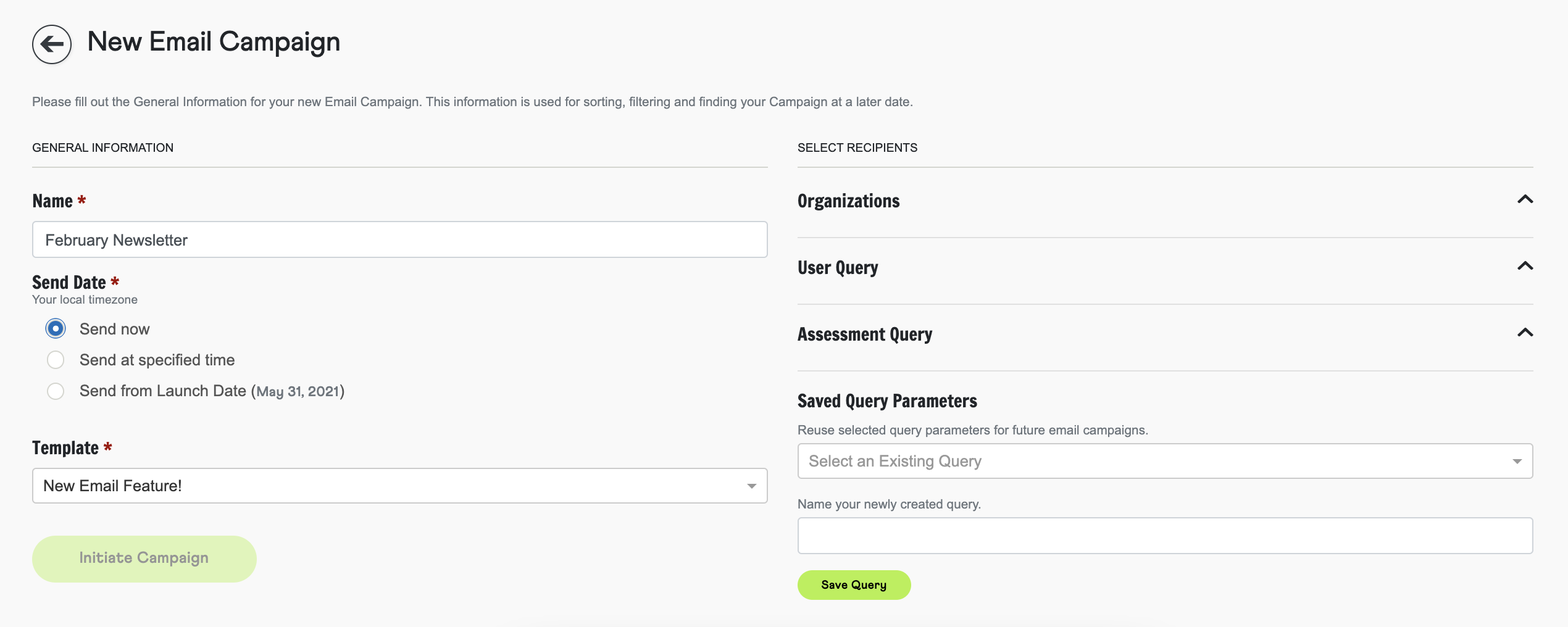
Set Recipient Criteria
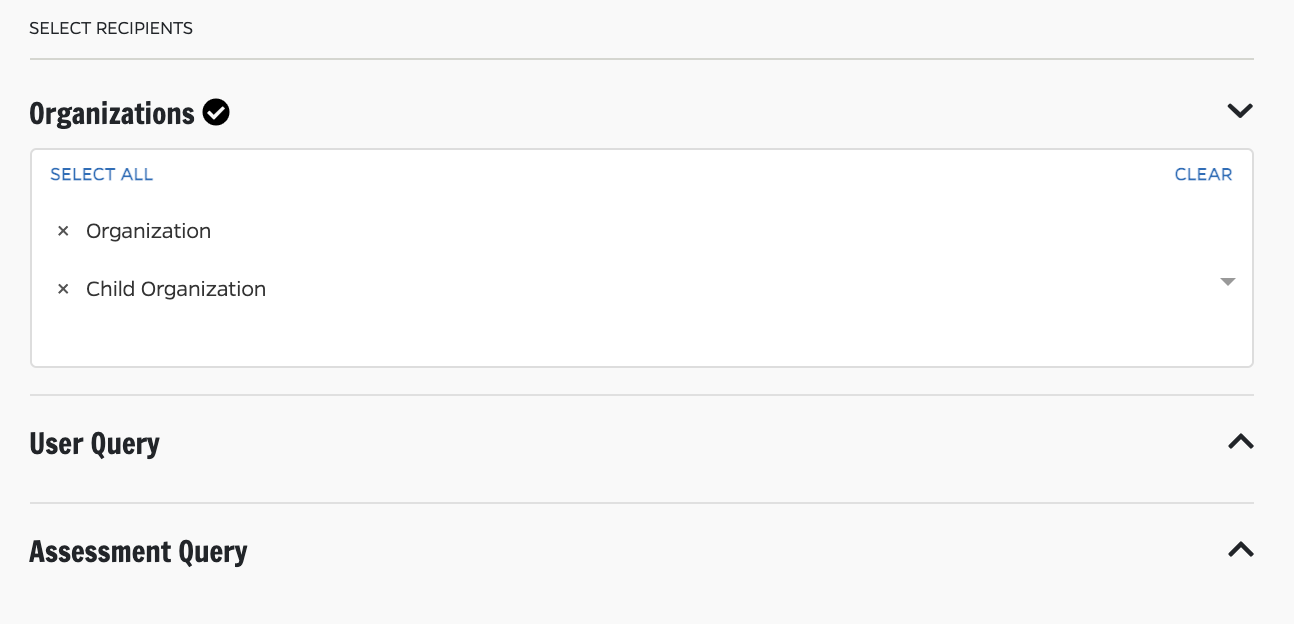
Using the options on the right side, set your recipient criteria. First, select which organizations your email should be sent to, then narrow the population using User and Assessment Queries.
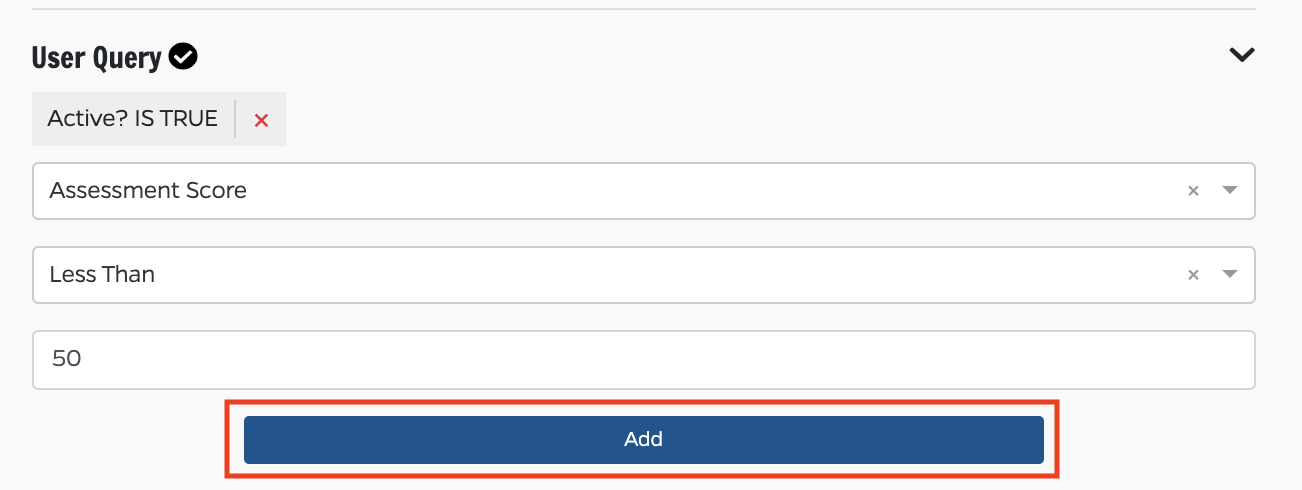
The User Query tool allows you to single out populations by selecting a 'field' and 'comparison'. In the screenshot below, we selected the field of Assessment Score and a comparison of Less Than 50 - this means the email will be sent only to users with an assessment score below 50.
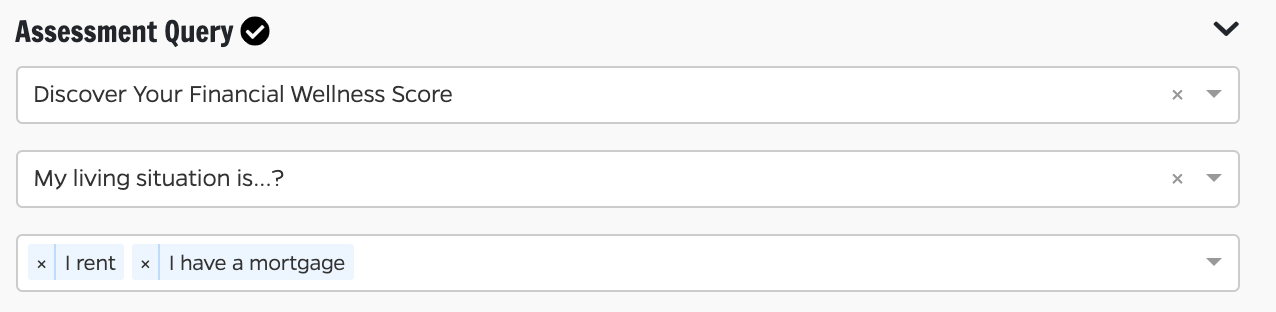
The Assessment Query tool allows you to narrow populations based on their answers to an assessment. Choose your assessment, question, and the applicable answers.
Click 'Save Campaign' to finalize your changes. The recipient query will run to generate your recipient list at the time of sending.
Saved Query
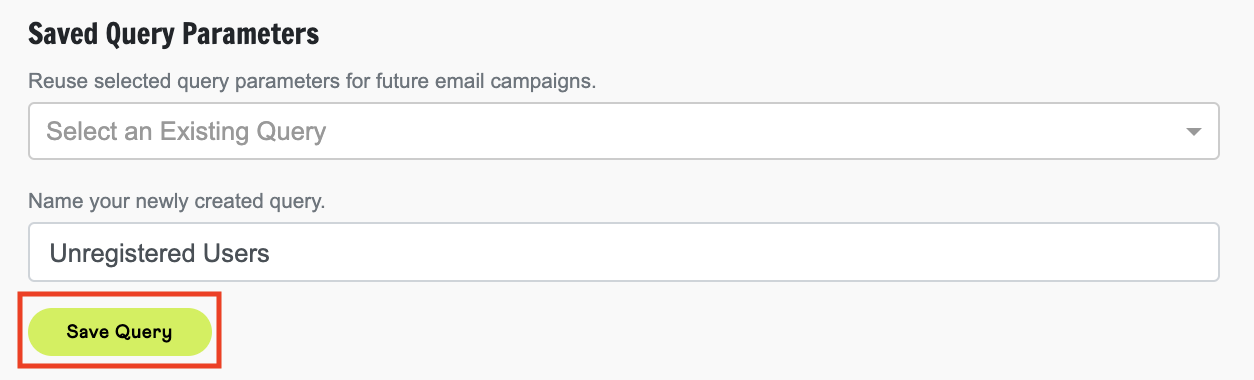
You are able to save a Query while making a campaign to easily use the same User and Assessment queries on future email campaigns. To save your query, just add a name and click 'Save'.
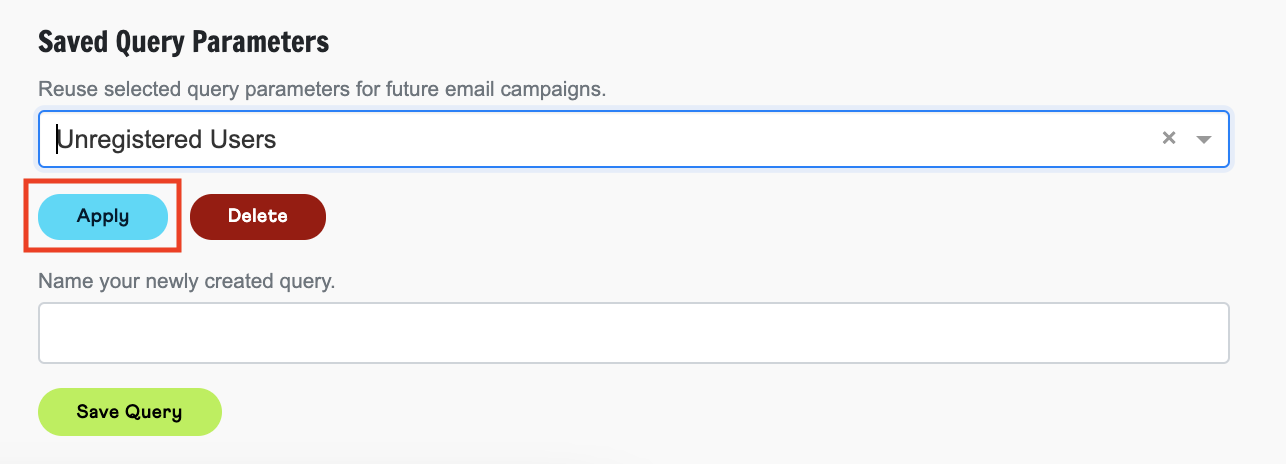
Once saved, you can use this query on any future email campaign by selecting it from the drop down menu and clicking 'Apply'.
Reviewing Campaign Results
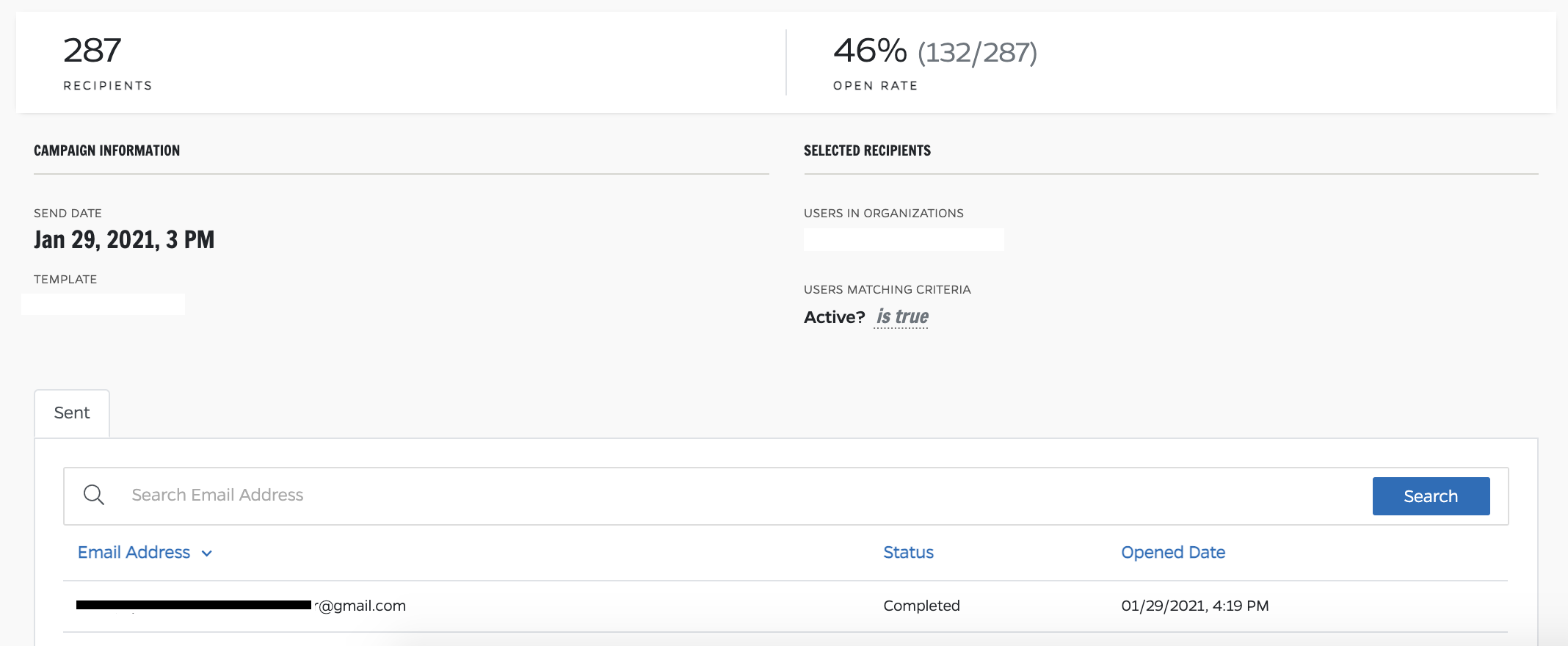
Any campaigns that have not yet sent will show a status of 'Pending'. When the campaign has sent, you are will be able to click into it to view results.

Campaign Results will provide you with the number of recipients and percentage open rate, as well as specific recipient details and any errors.
Other helpful articles related to emails:
How do I create an email?
How do I create a custom email layout?
How do I send a test email?
Comments
0 comments
Please sign in to leave a comment.