
The Goals feature allows you to add specific financial goals that can be linked with your aggregated bank accounts to automatically update and provide real-time tracking of your goals.
To create a new goal, first click on the My Money tab at the top of your screen, then click on 'Goals'.
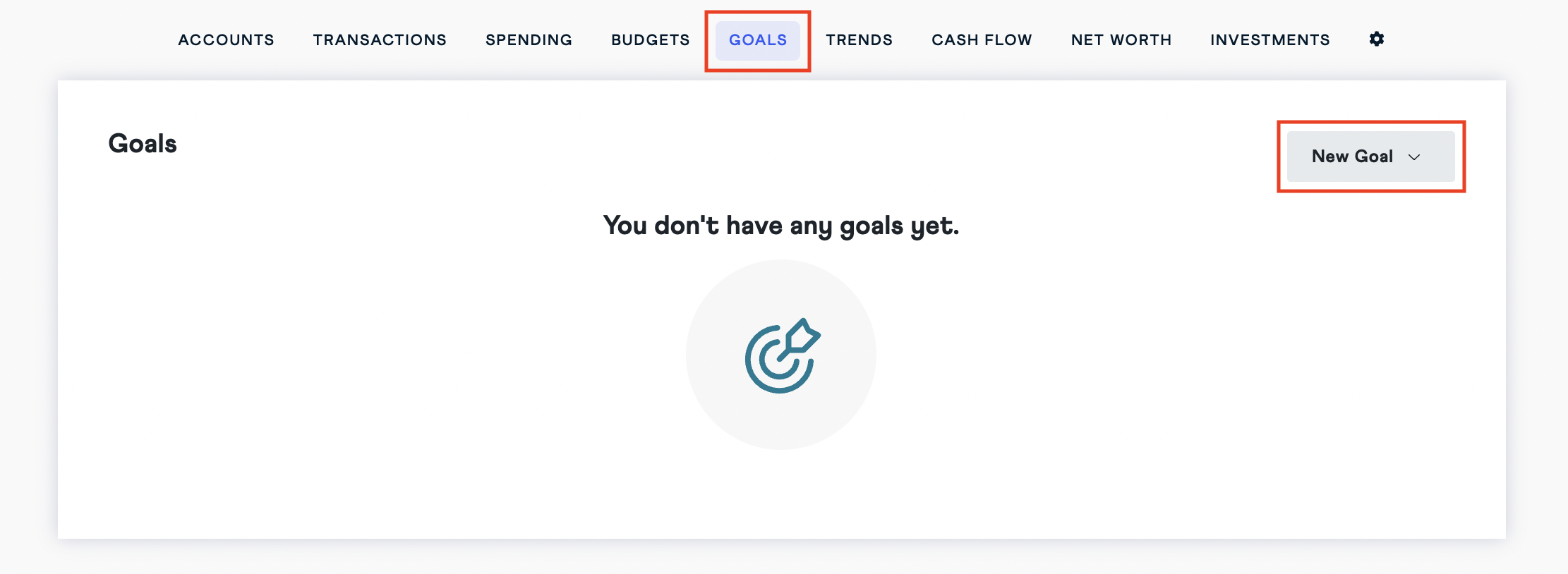
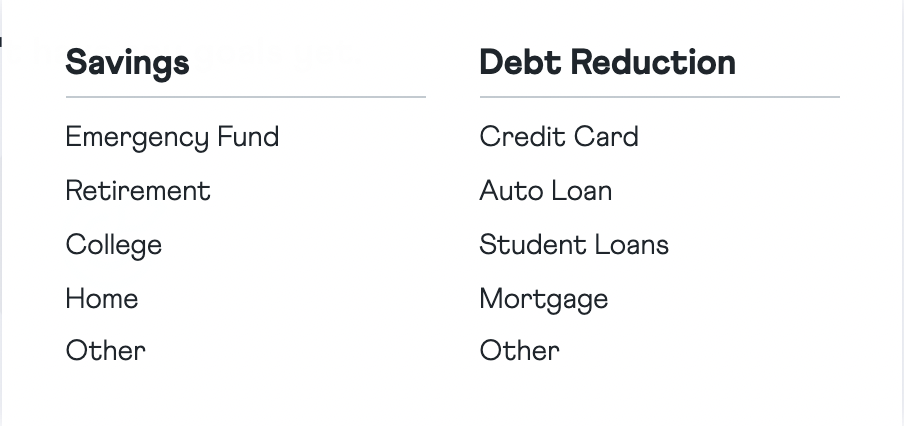
Click on 'New Goal' and select the type of goal you would like to create from the drop down menu. If you do not see your specific goal type, click on 'Other' under either Savings or Debt Reduction, whichever fits your goal.
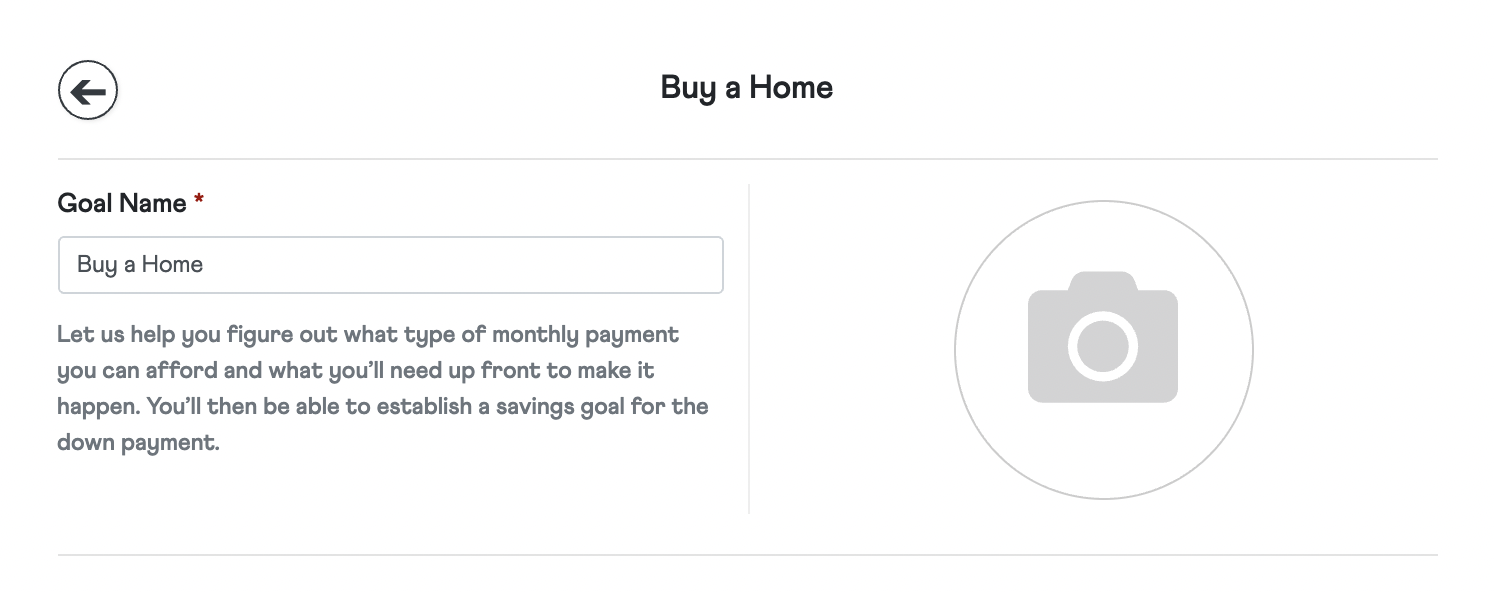
Once you have selected your goal type, you can update the goal name and add an image.
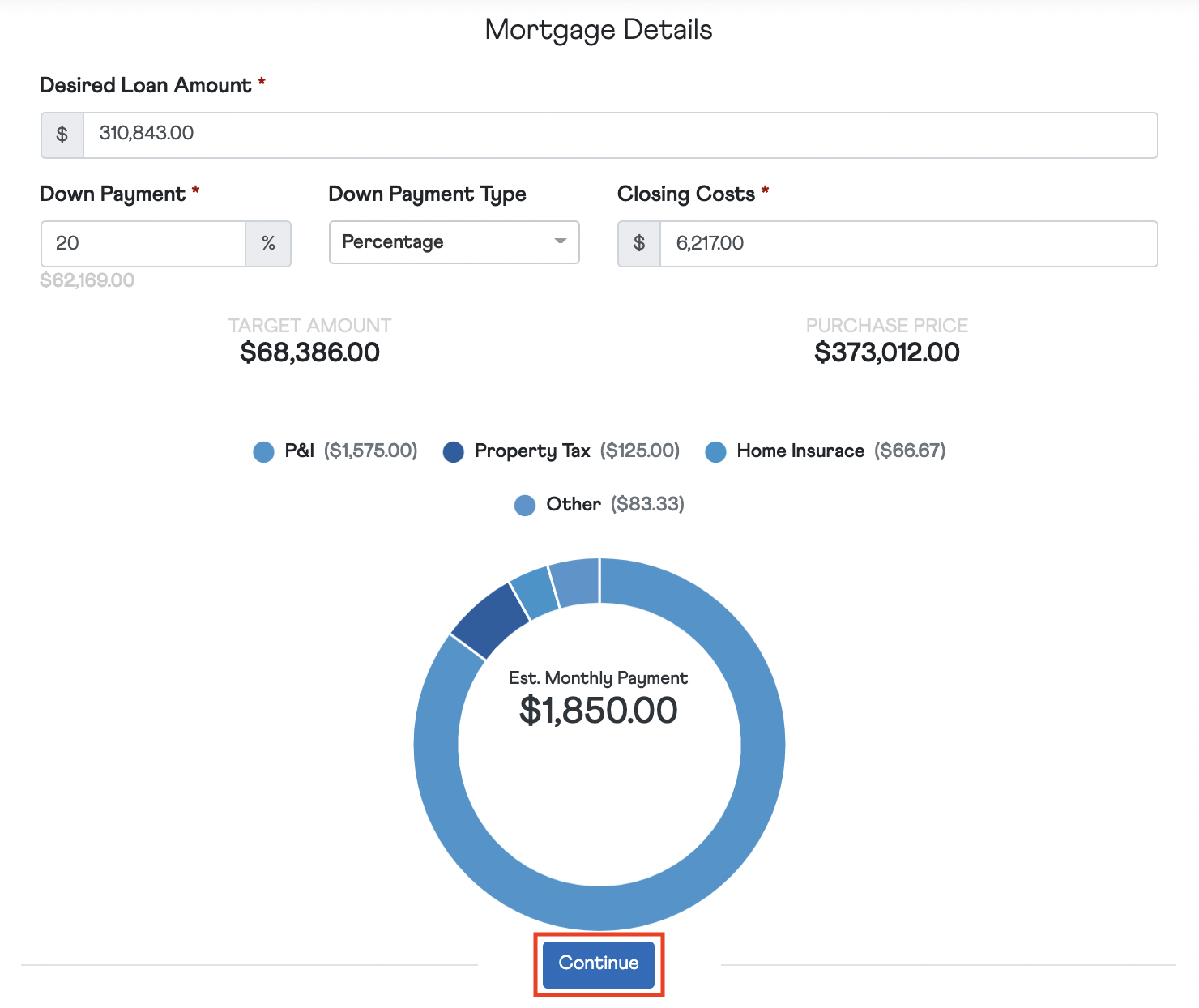
When you select your goal type, you are asked a set of relevant questions designed to emulate the conversation you would have with a coach. For example, a Home Savings goal will have fields to add mortgage details, such as down payments and closing costs. The platform will populate values for you based on your profile and national averages, but you are able to customize goal details for a more accurate projection.
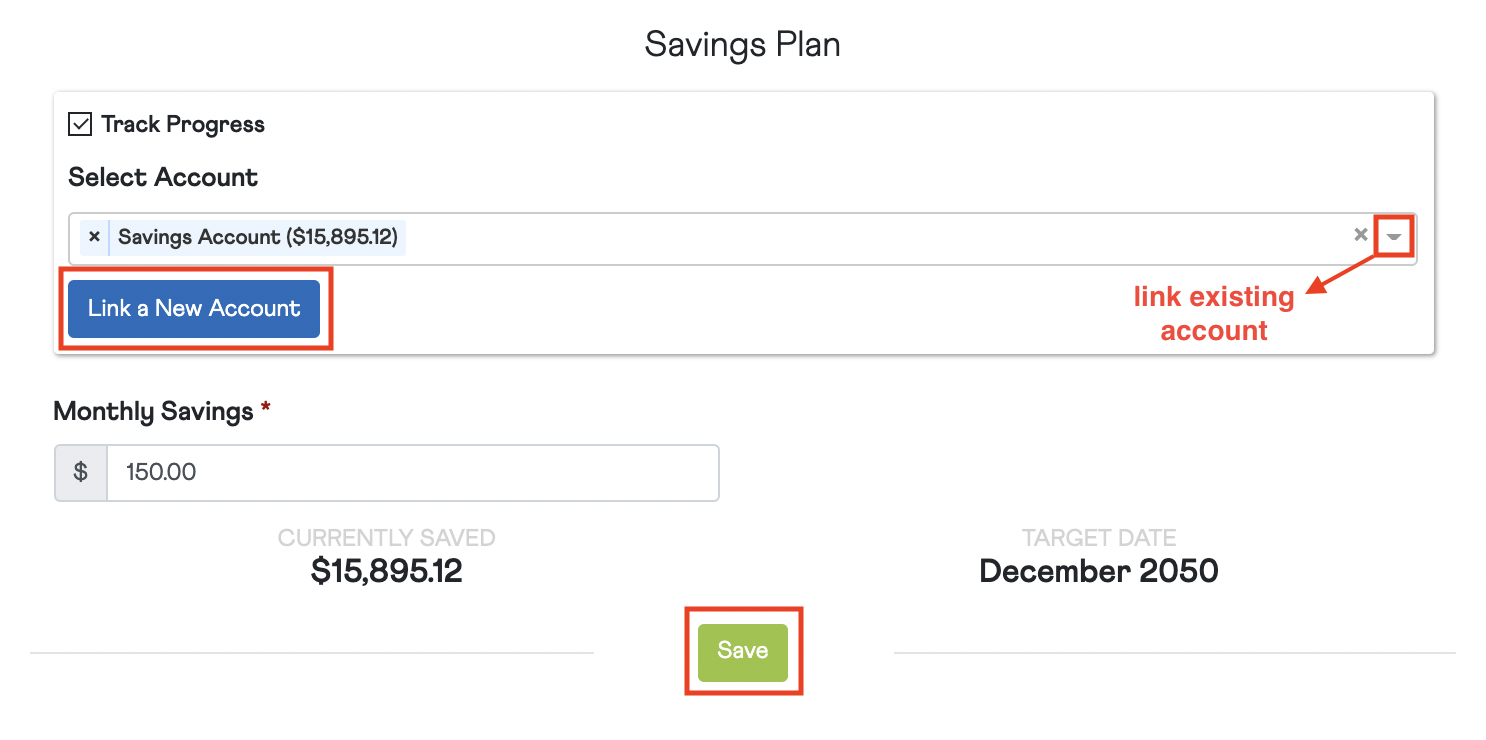
Each goal will have a field to associate a bank account and live-track your progress. Use the drop down menu to select an existing account, or add a new financial account by clicking 'Link a New Account'.
Enter your Monthly Savings, or the amount you pledge to put aside towards this goal each month, and a Target Date will appear. Press 'Save' to save this goal to your profile.
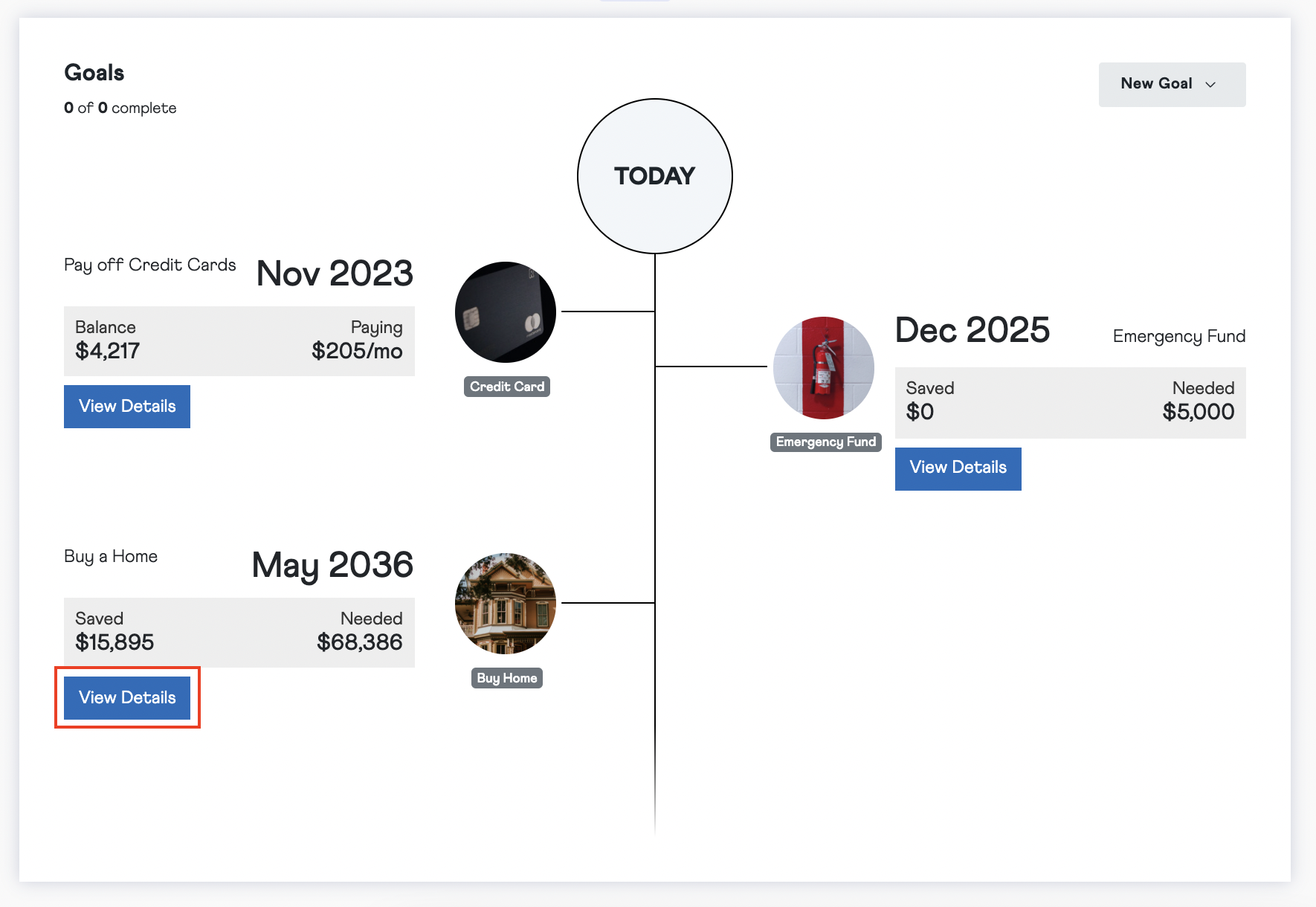
You will see all of your goals on a timeline, listed chronologically by target date. As your account balances change, goal information and target date will update. Savings goals will show how much is 'Saved' and how much is 'Needed', while debt reduction goals will show your outstanding balance and monthly payment. Click 'View details; to edit or delete a goal.
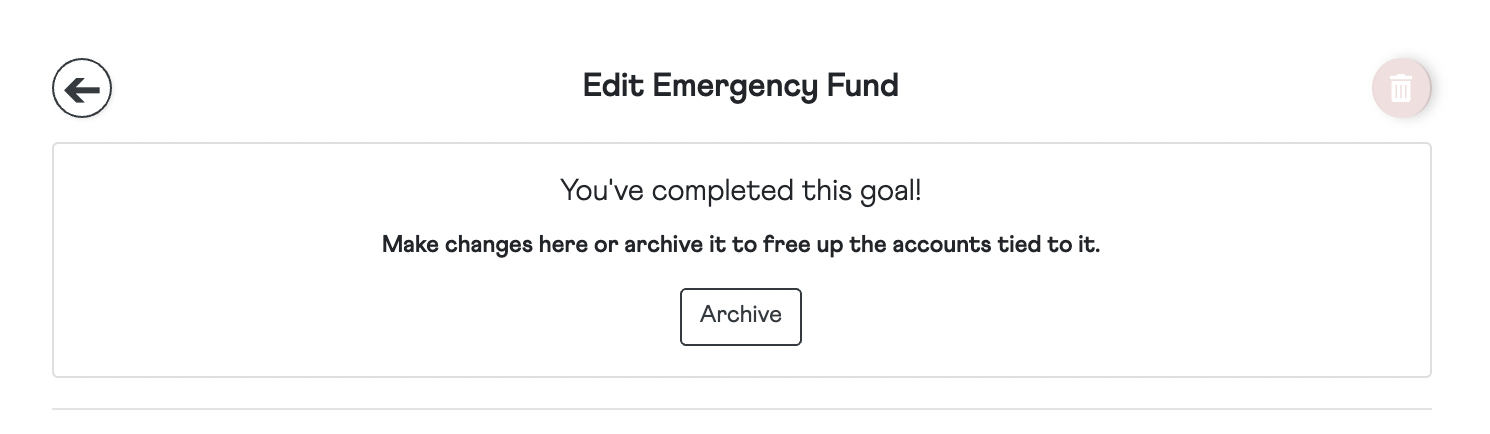
When you complete a goal, it will show at the bottom of the timeline. The status will show as 'Monitoring' which means it is still connected to an account. If the account balance drops below the goal amount, the goal will go back onto the timeline. Click on the completed goal to edit, delete, or archive it.

Archiving a goal frees up the accounts tied to it so that you can link them to new goals. Please note that you can not make further changes to a goal once it has been archived.
Comments
0 comments
Please sign in to leave a comment.