
The Spending tab shows you where your money is going, by category, so you can better understand your spending habits and stay on track.
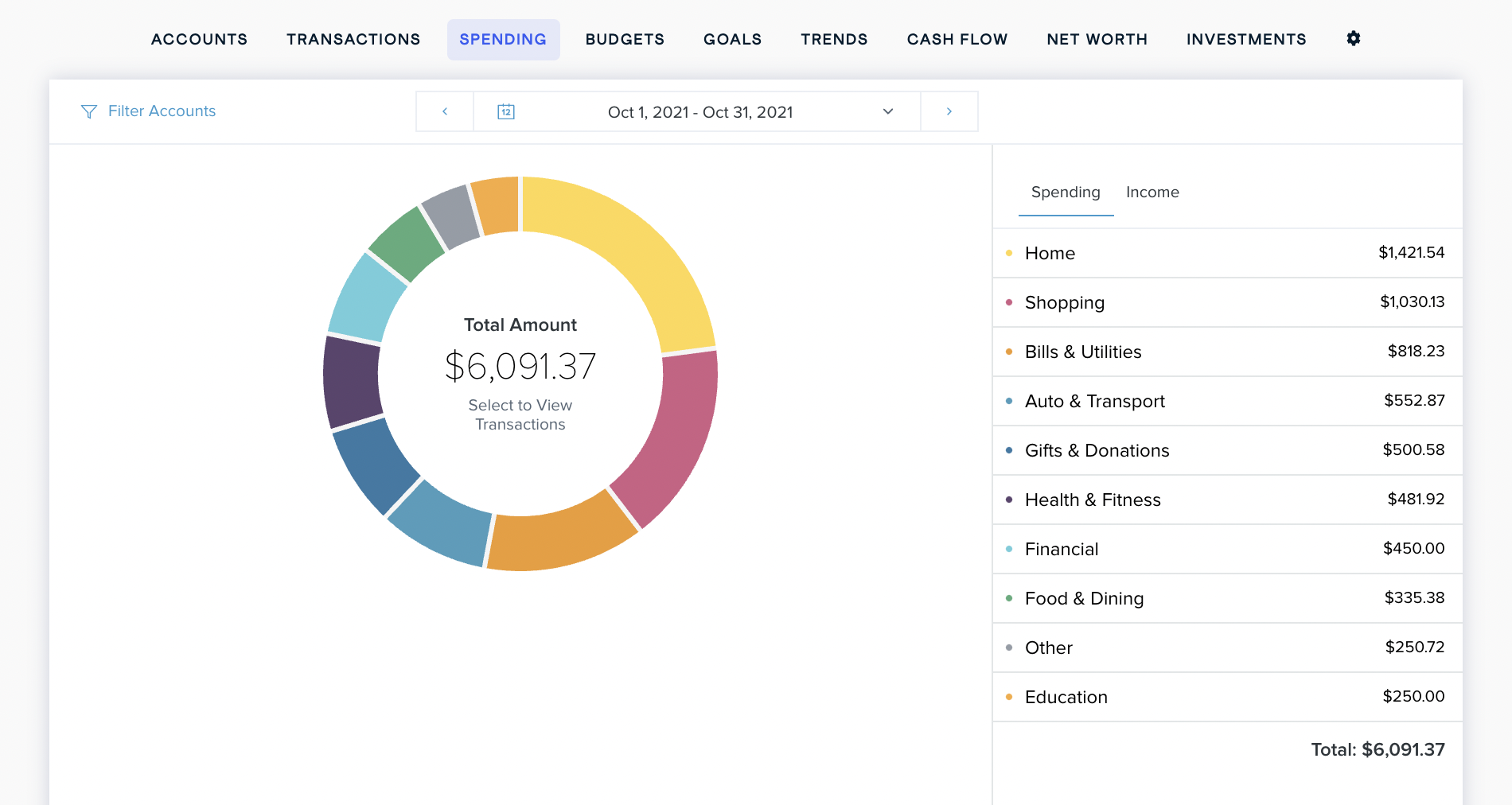
- Click on the 'Filter Accounts' dropdown on the top left to choose which accounts to include in the spending wheel.
- Click on a section section of the wheel to see how much you spent in each category.
- If your spending in a category is below 3% of your overall spending, it will be grouped in “Other” with other low-spending categories.
- If your spending in a category is below 3% of your overall spending, it will be grouped in “Other” with other low-spending categories.
- Click on any category to see a breakdown of spending by subcategory, such as how much of your spending in Food & Dining is on groceries versus eating out.
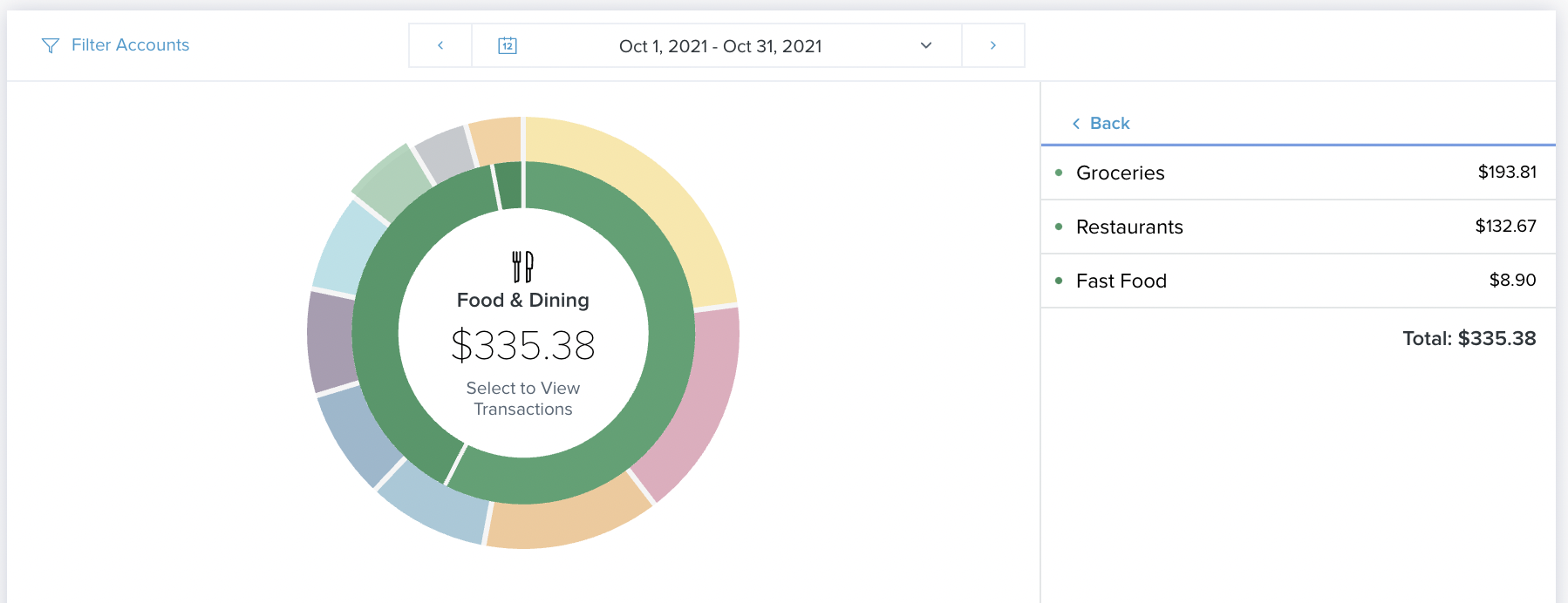
- Click on any subcategory, or on the center of the spending wheel, to see the transactions associated with the selected subcategory. From this view, you can also edit the transaction details just like in the main transactions widget.
- To return to the main spending wheel, click on the blue arrow in the corner, or in the gray area outside of the Transactions view.
Customize the Date Range
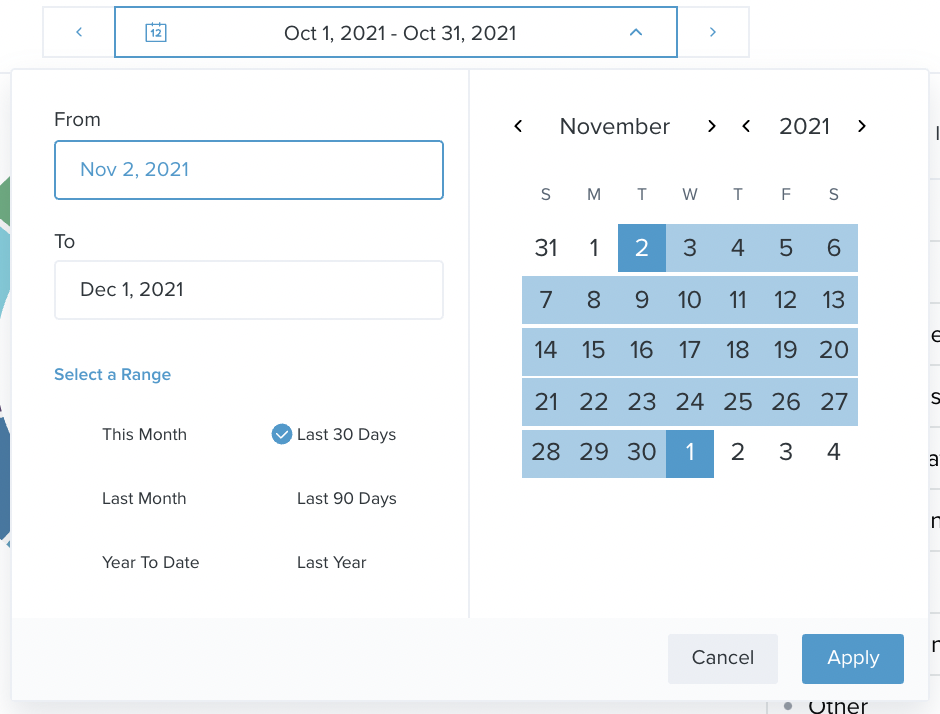
You have multiple options for adjusting the date range:
- Use the back and forward arrows to navigate through time
- Use the dropdown arrow to select from a list of preset date range options.
- Use the dropdown arrow to open the calendar view to select a custom date range.
Income Report
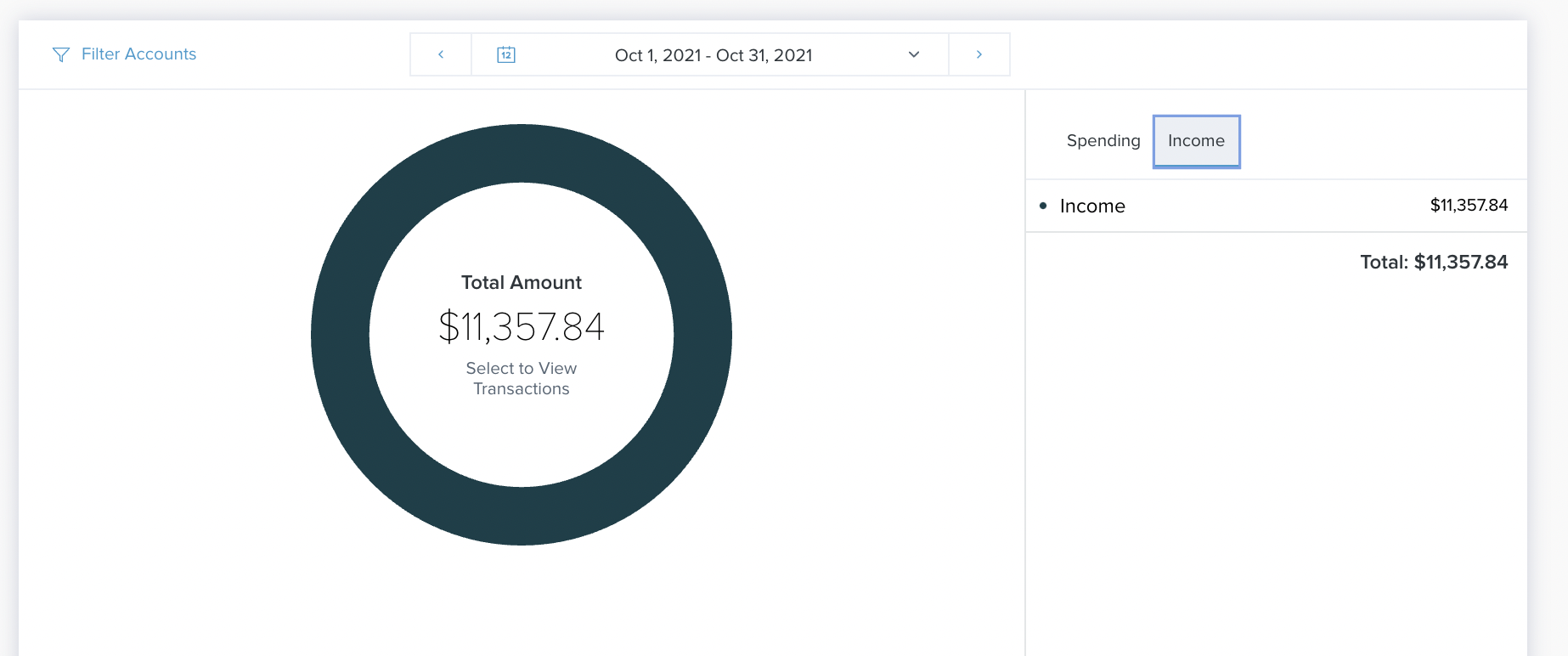
To view your income, click on “Income” on the top right.
As with spending, you can click on an income category to view your income by subcategory, and drill down to the transaction level if desired.
Comments
0 comments
Please sign in to leave a comment.