
Connect an Account
To add an account:
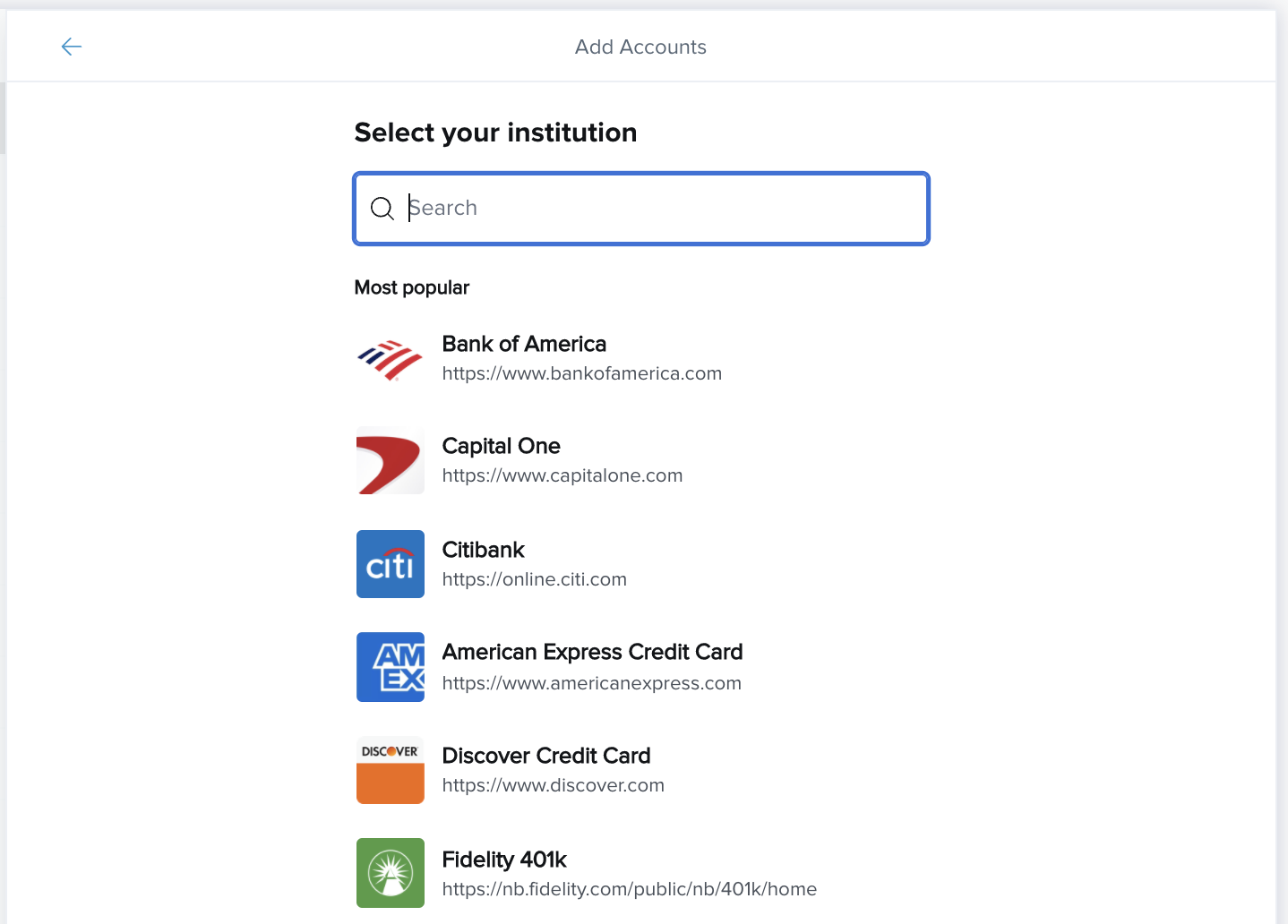
- Click “Add an Account” on the right to open the “Add Account” window.
- Search for a financial institution by its name or URL.
- Select the institution from the list and enter the requested login credentials.
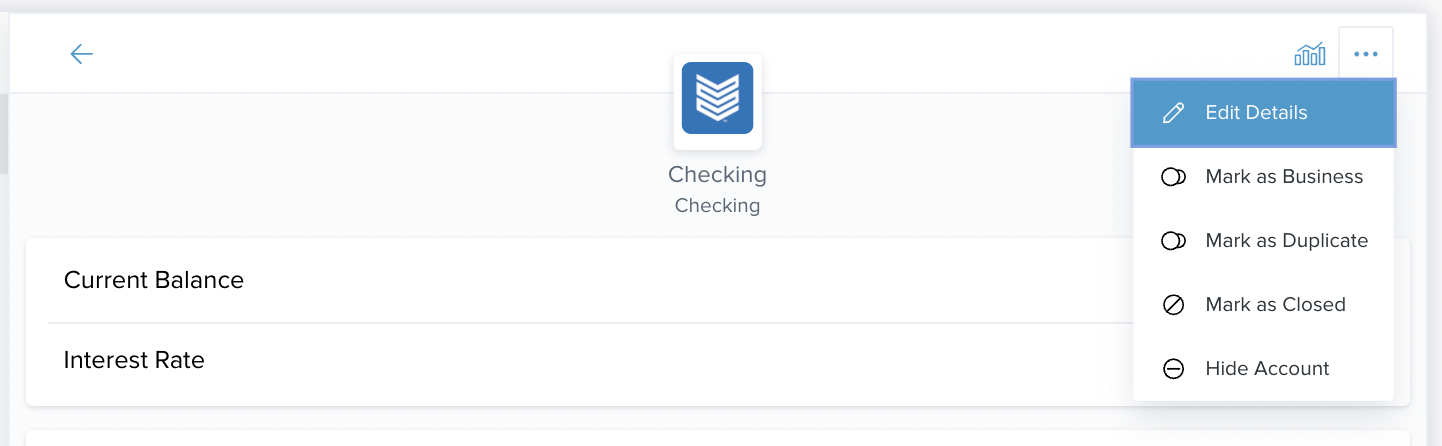
If your account is showing up as the wrong 'Account Type', you can change this by clicking the "•••" on the account information page and selecting 'Edit Account' from the drop down. From here, click into the account type and select the correct type from the list that appears. Remember to press 'Save' after any changes are made.
Add a Manual Account
Sometimes it’s just impossible for the app to automatically bring in important financial information. It might be that one of your financial institutions doesn’t support our software, or it might be that you paid off your home a decade ago, so there wouldn’t be an online account with any information about it.
In these kinds of situations, you should add a manual account. They’ll allow you to keep track of a lot of things with a lot of value: property like a home or car; cash that isn’t in a bank; a credit card that isn’t compatible with the app; a loan you’re paying back to a friend. These are all critical to your finances, so you should feel free to add as many as are necessary.
ℹ️ — If you have a mortgage or loan that was used to buy property like a home or a car, you should add a manual account for the full value of that home, car, etc. That way, the app will keep track of the positive value of your assets and not just your debt.
Also note that manual accounts must be updated using manual transactions.
To add a manual account:
- Click “Add an account” at the top right of the Accounts tab.
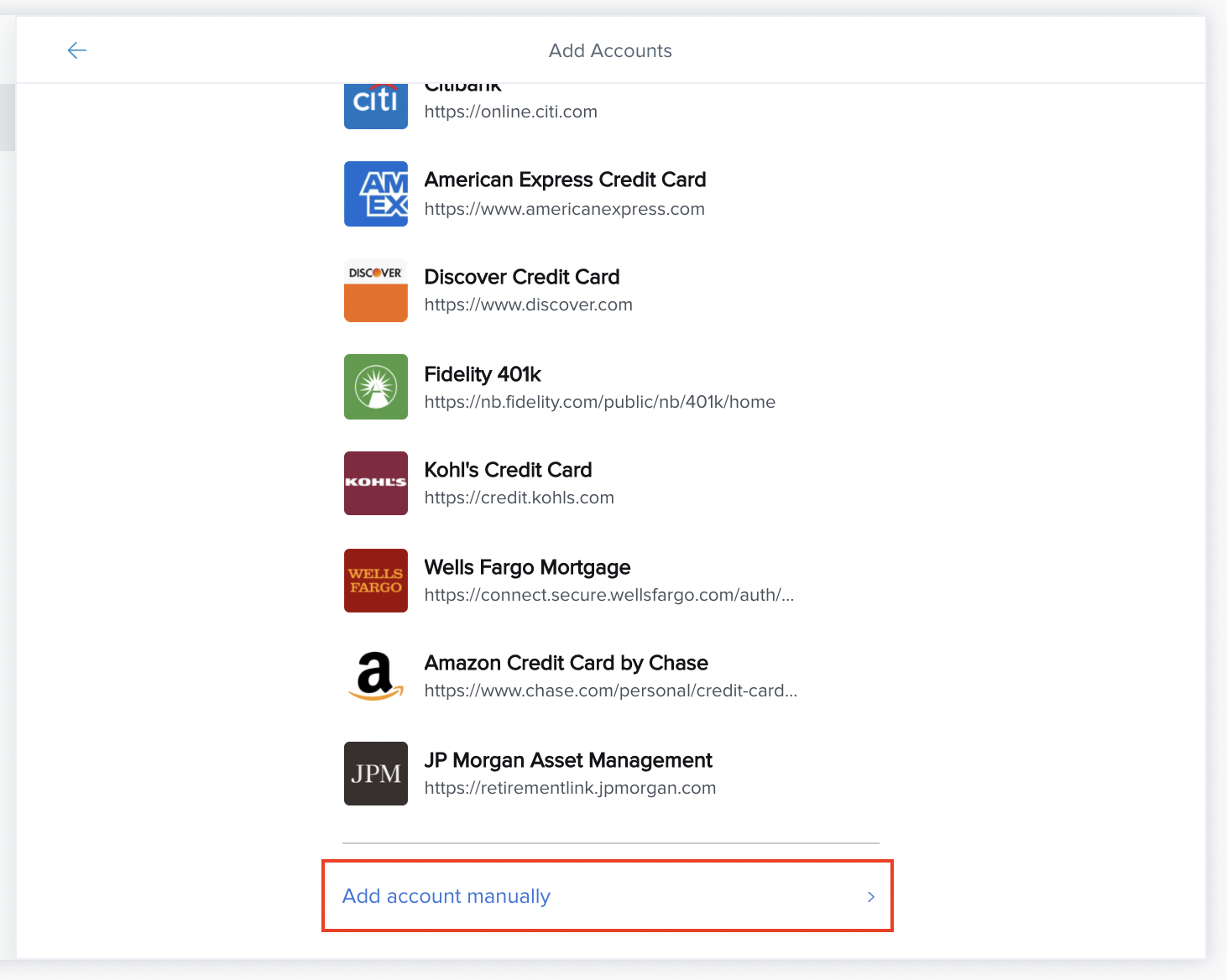
- Click “Add a Manual Account” at the bottom of the window.
- Choose an account type. You can choose from the following:
- Checking
- Savings
- Cash
- Investment
- Property (Real Estate)
- Credit Card
- Mortgage
- Loan
- Line of Credit
- Enter in the account name and details. This could be a balance or value on property accounts, or you may need to enter an APR or APY on investments or mortgage accounts. Each type of account will require slightly different information. Make sure to fill out the details completely.
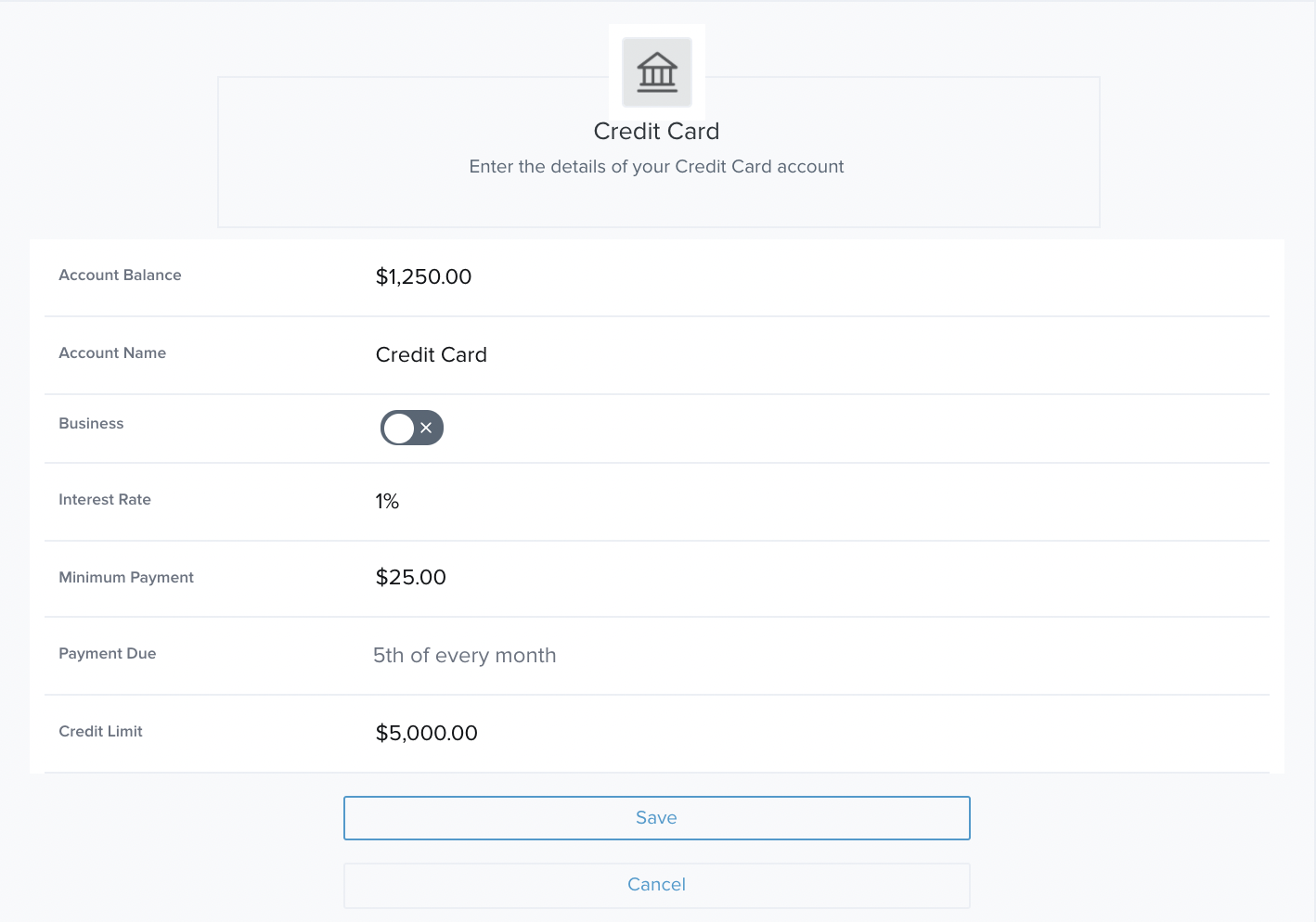
- Click “Save.”
ℹ️ — Getting the details you’ll need for step 5 may require pulling out a paper statement, making a call, or logging on to another online account — but it’s worth it. The app will be far more accurate — and you’ll rest far easier — knowing you’ve got all the information you need to take full advantage of this powerful software!
You may wish to delete a manual account from time to time, like when you sell a computer, car, or even your home.
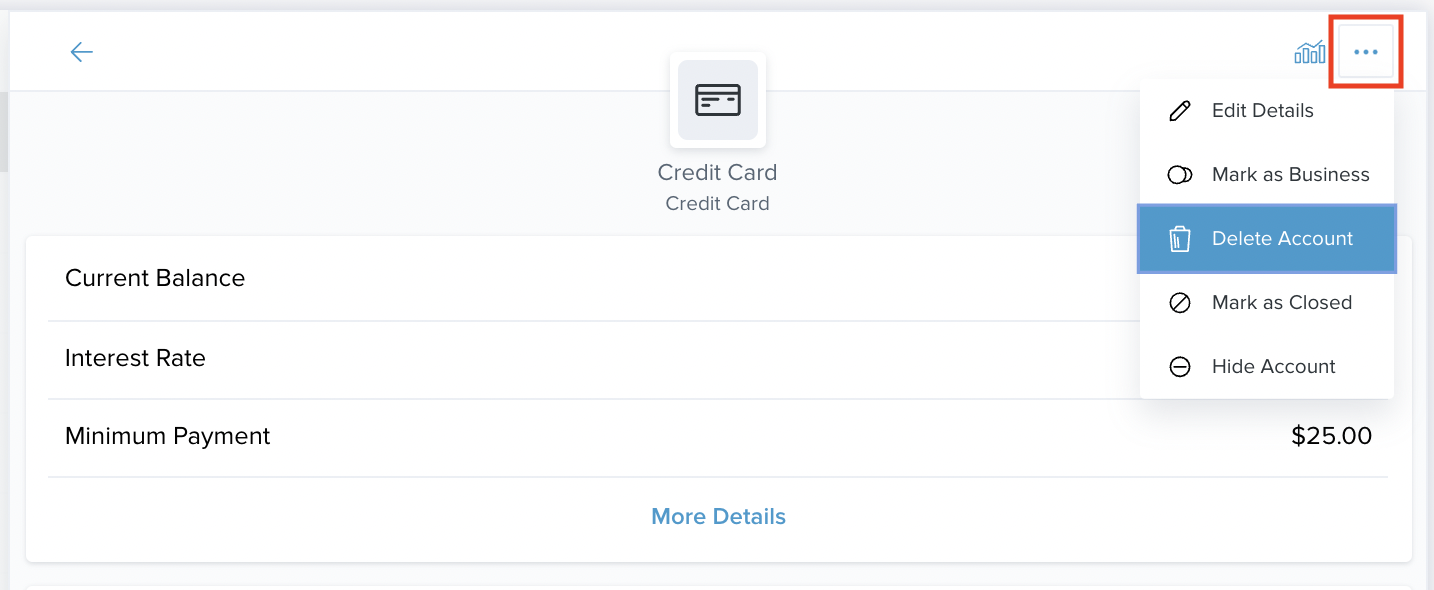
To delete a manual account:
-
- Select the account you wish to delete.
- Click the "•••" menu and choose "Delete Account"
- Type "DELETE."
- Click "Delete" to confirm that you wish to delete the account or click "Cancel" if you change your mind.
Comments
0 comments
Please sign in to leave a comment.