
Editing Budgets
You can change budget amounts, create new budgets, create sub-budgets within the main budget, create custom sub-budgets, and delete budgets.
You can edit your budgets in multiple places. Use whichever tool you prefer, or feel free to switch between both.
To change budget amounts in bubble view:
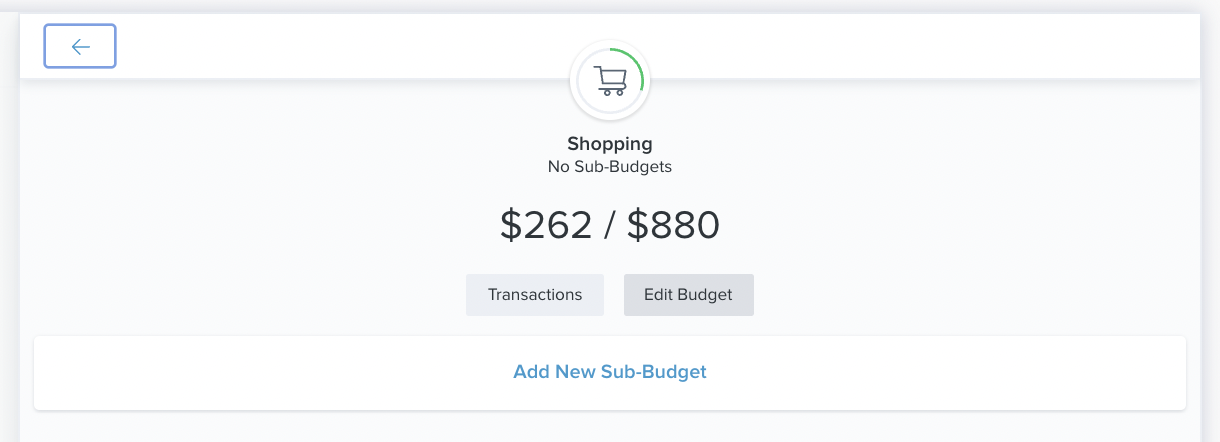
- Click on your desired bubble budget or sub-budget.
- Click "Edit Budget".
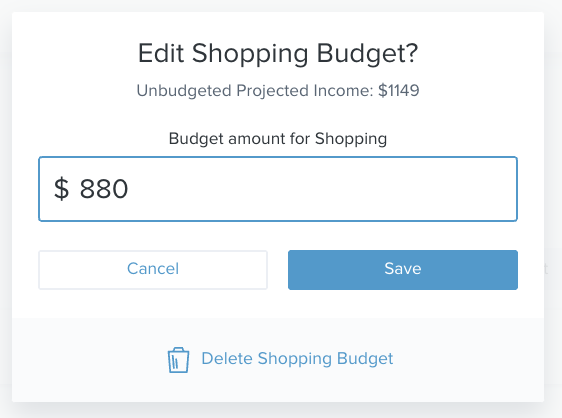
- Enter your desired budget amount.
- You'll see your available unbudgeted funds above the budget amount.
- Click "Save" or click "Cancel" if you change your mind.
To change budget amounts in list view:
- Scroll down to the list view - this can be found right below the bubble view.
- Select the desired parent budget.

- Choose "Edit Budget" to edit the total of the parent budget.
- Enter your desired budget amount.
- Click "Save," or click "Cancel" if you change your mind.
To edit a sub-budget:
- Click on your desired parent budget to open the budget details window.
- Click "Add New Sub-Budget".
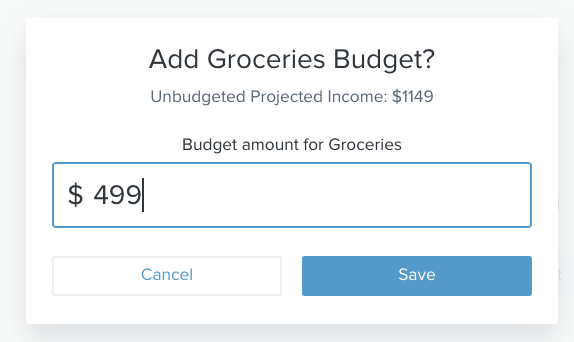
- Select your desired sub-budget; the sub-budget will automatically be given an amount based on past spending.
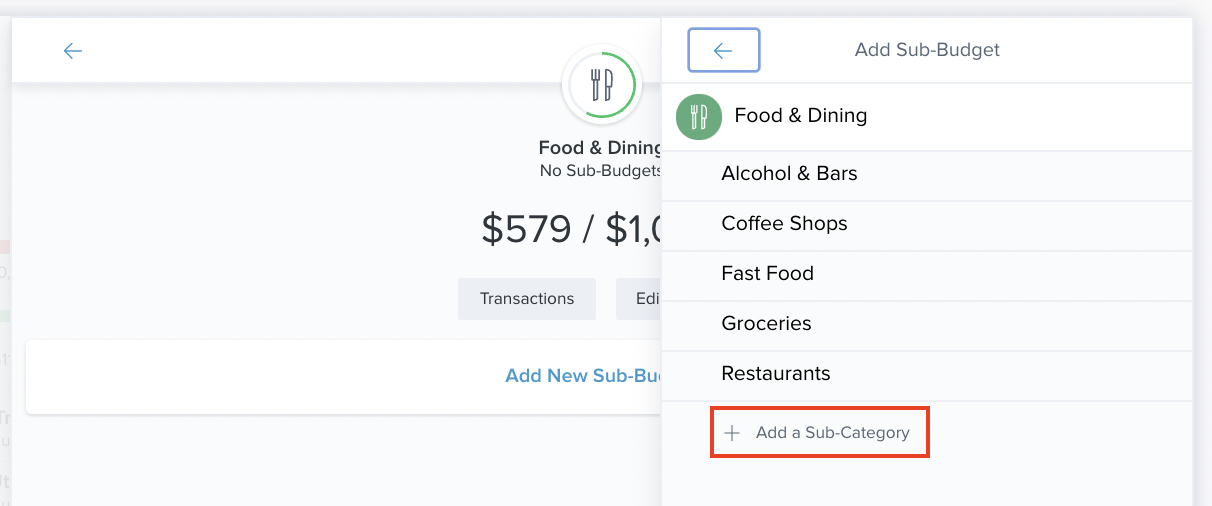
Alternatively, you may create a custom sub-budget:
-
- Click "Add a Sub-Category."
- Enter a new name for the sub-budget.
- Click "Add."
Deleting Budgets
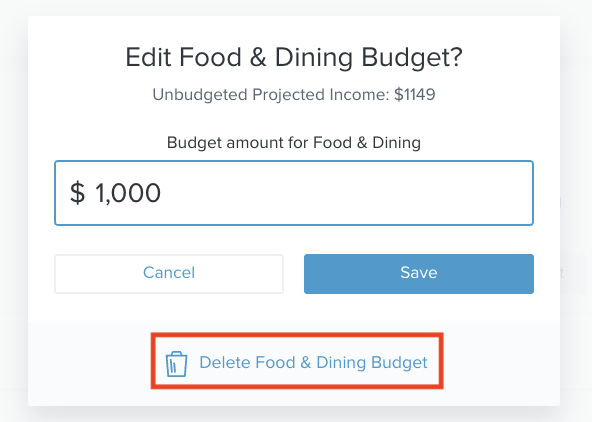
To delete a budget:
- Click on the budget to open the detail view.
- Choose "Edit Budget" to delete the parent budget.
- Click “Delete [budget name].”
- Click “Delete” again to confirm.
Projected Income
You can also view and edit your projected income within budgets, helping you to make budget decisions that balance with your income. Projected income is calculated based on transaction history; however, you can edit this number manually.
To edit projected income:
- Scroll down to the list view of your budget.
- Click the pencil icon underneath the green bar showing your projected income.
- Enter a new amount.
- Click “Save.”

Comments
0 comments
Please sign in to leave a comment.