
The Budget tab can help you set realistic monthly spending limits and monitor your progress toward hitting those limits. The Budgets tab draws your eye to the categories that need your attention the most — big bubbles represent a larger portion of your monthly budget, and red bubbles have exceeded their monthly allowance.
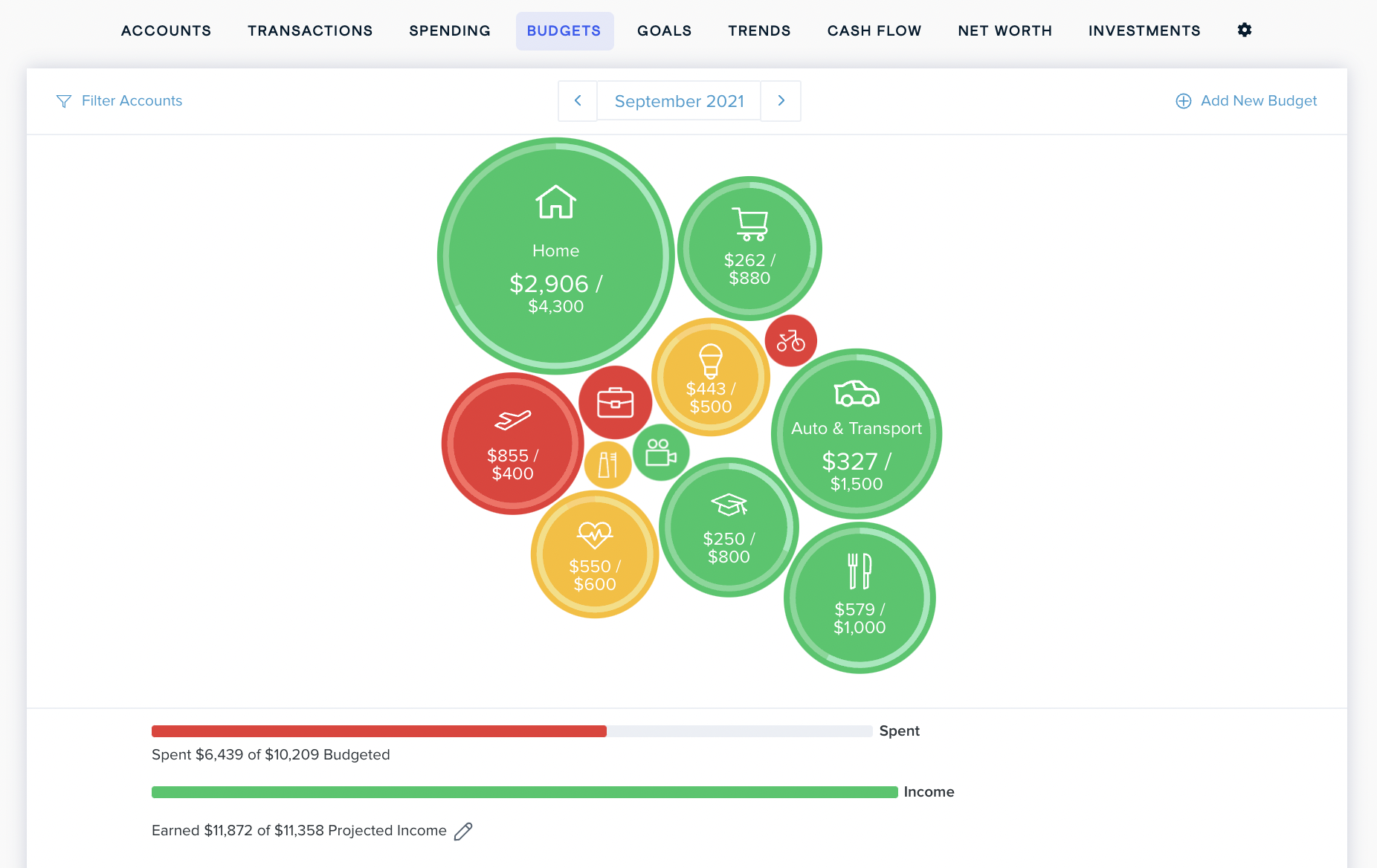
You can build out your budget manually or have the platform build out your budget automatically based on past transactions.
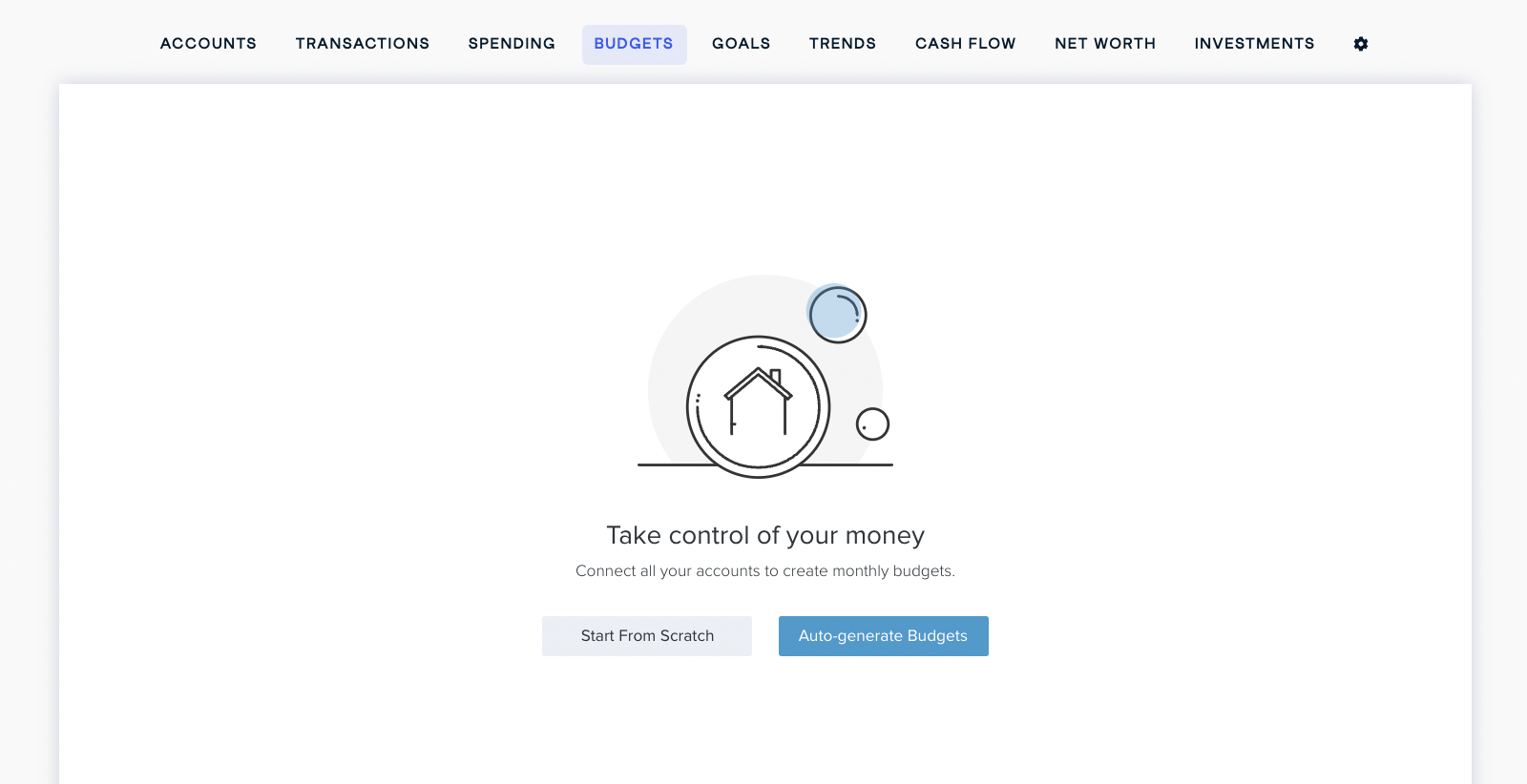
Auto-Generate Budgets
The platform can auto-generate your budget based on your average spending in each category over the last two months for which there are complete data.
ℹ️ — The auto-generate feature will require you to first add your accounts and accurately categorized your transactions.
Review your generated budgets and adjust them if necessary. You can decide which categories you do and do not want included. If a category was added during auto-generation that you do not want in your budget, you can delete it.
You may also automatically recalculate your budgets at any time, or delete all your budgets to start from scratch again.
Start from Scratch
If you choose to start from scratch, the software will present a list of spending categories.
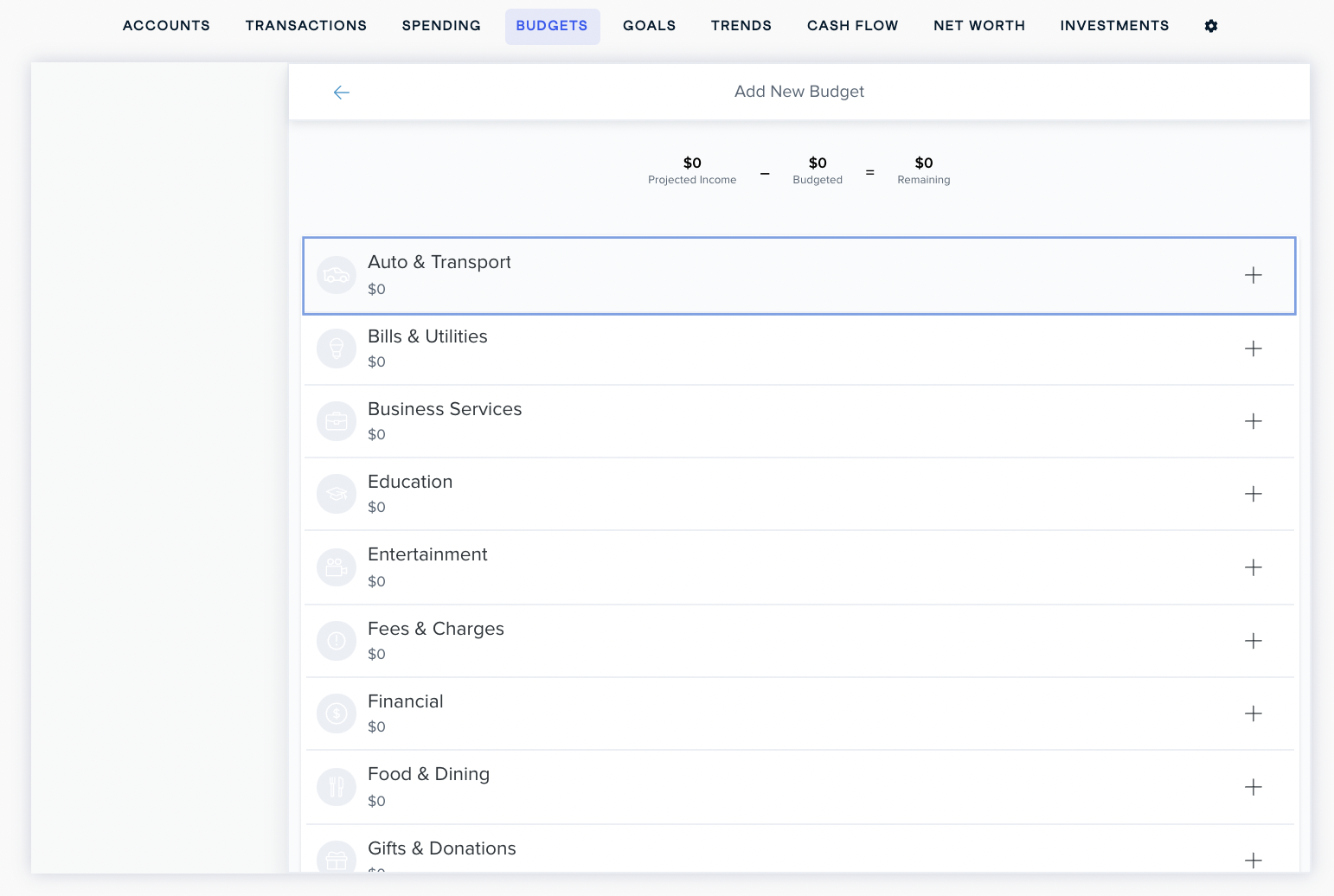
To create budgets from scratch:
- Select the "+" to the right of a category to create a budget for it.
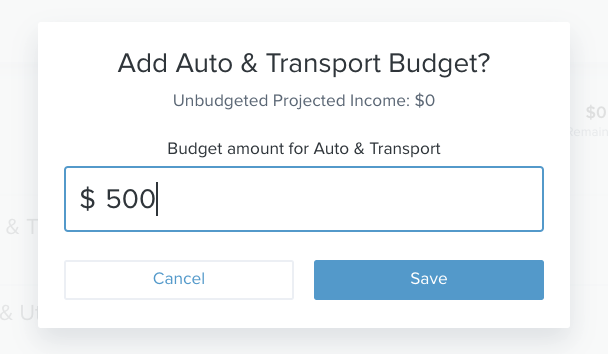
- A window will appear with a suggested amount for that category if your accounts are already aggregated.
- Enter the amount you'd like to allocate for that category, or simply leave the suggested amount as-is.
- Click "Save" to create the budget for that category or "Cancel" if you change your mind.
- The newly created budget will appear at the top of the list in color.
- Repeat the steps above for all other desired categories.
Recalculate Budgets
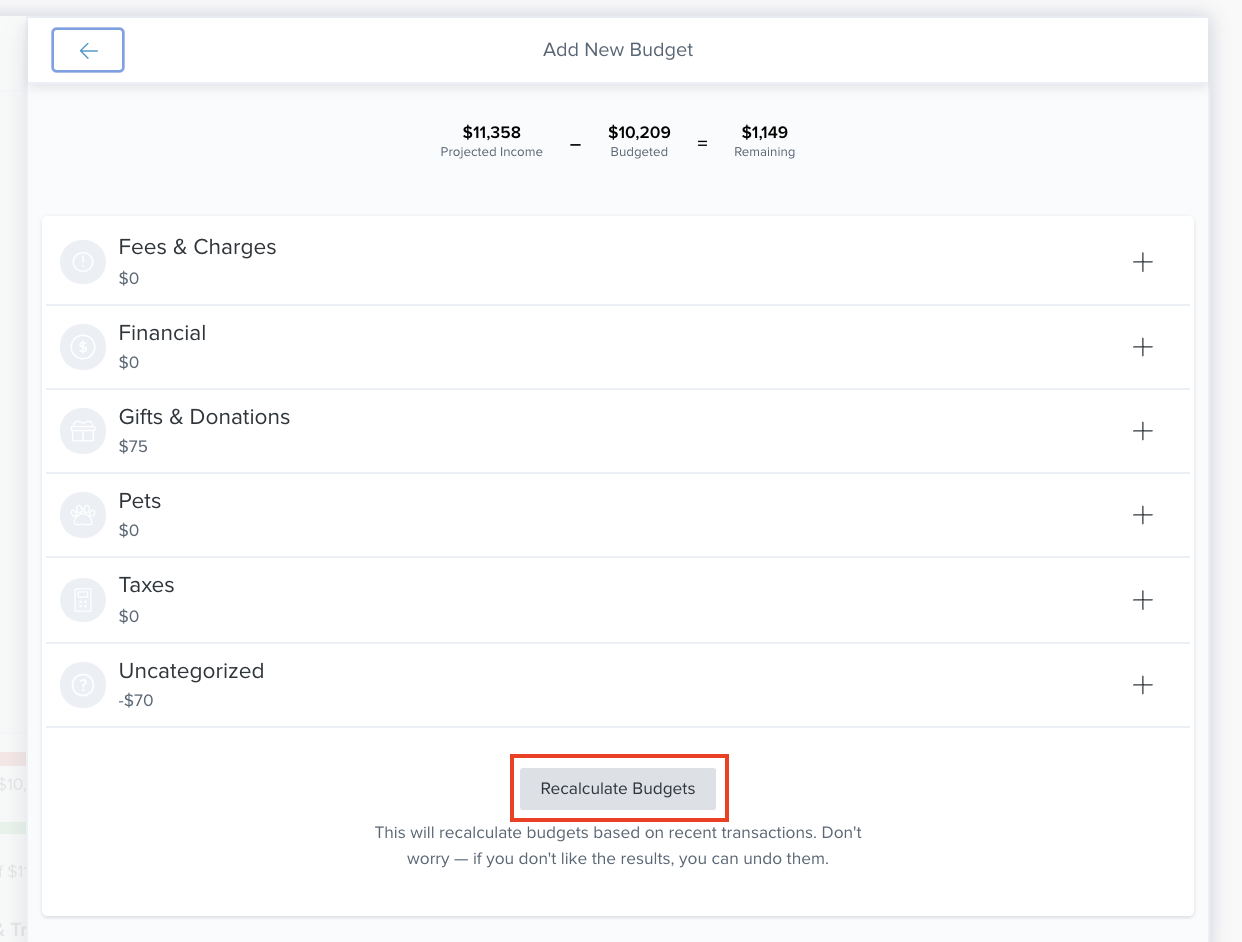
If your budgets seem a bit off or you want to take advantage of automatically create budgets, you can use the recalculate feature. In order to make these budgets as accurate as possible, recalculation is based on the last two months for which complete data are available.
To recalculate your budgets:
- Click on the “+ Add a New Budget” link on the top right of the budgets home page.
- Scroll to the bottom of the pop-out menu.
- Click on “Recalculate Budgets.”
- You'll see a preview of each newly created budget next to the previous budget amount.
- Click "Save" if you'd like to keep these budgets. Click "Undo" if you change your mind.
Comments
0 comments
Please sign in to leave a comment.